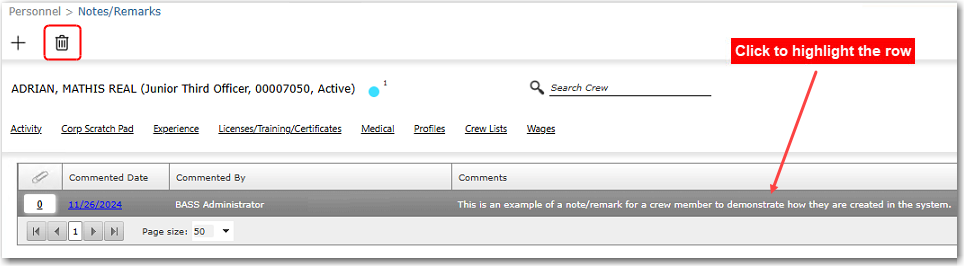
To delete a previously created note/remark:
1. From the HR Manager main menu, click Profiles under the Personnel menu.
2. Ensure that the crew profile for which you want to delete a note or remark has been loaded.
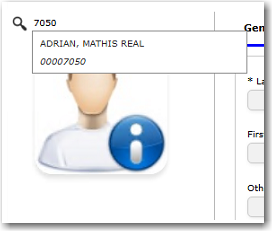
Note: To search for a crew member, enter part of the crew's name or ID in the Search Crew field above the profile picture, then select from the auto suggested results.
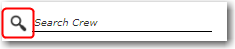
Note: Alternatively, click the magnifying glass icon to open the Simple Search pop-up window. You can use the drop-down function to select and load a list from the Personnel List section and click a crew member from the Search Result section to view his profile, or search for specific crew member(s) based on their Name, Gender, Nationality, Pool, Rank, Manning Agent, and Active/Inactive status.
3. On the crew profile, click the Notes/Remarks link. Alternatively, you can also access the Notes/Remarks screen by clicking the light blue indicator on the crew profile.
4. On the Notes/Remarks screen, click the relevant record that you want to delete.
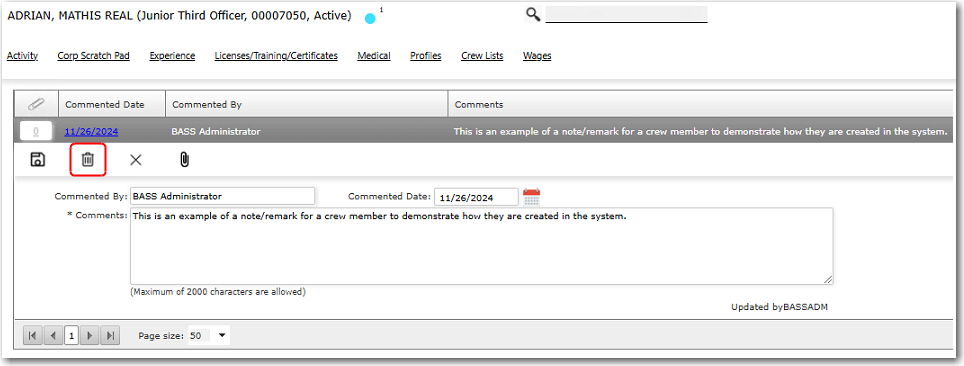
5. The details of the selected note or remark will be displayed. Click the trash bin icon to delete the record, and then click Yes to confirm. The record will then be removed from the table.
Note: Alternatively, without opening the selected record on the Notes/Remarks screen, you can click to highlight the record and then click the trash bin icon at the top to delete the record.