To add a new note/remark for a crew member:
1. From the HR Manager main menu, click Profiles under the Personnel menu.
2. Ensure that the crew profile for which you want to add a note or remark has been loaded.
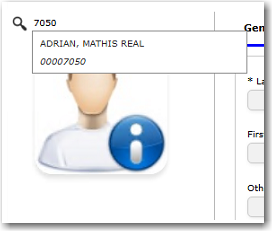
Note: To search for a crew member, enter part of the crew's name or ID in the Search Crew field above the profile picture, then select from the auto suggested results.
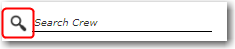
Note: Alternatively, click the magnifying glass icon to open the Simple Search pop-up window. You can use the drop-down function to select and load a list from the Personnel List section and click a crew member from the Search Result section to view his profile, or search for specific crew member(s) based on their Name, Gender, Nationality, Pool, Rank, Manning Agent, and Active/Inactive status.
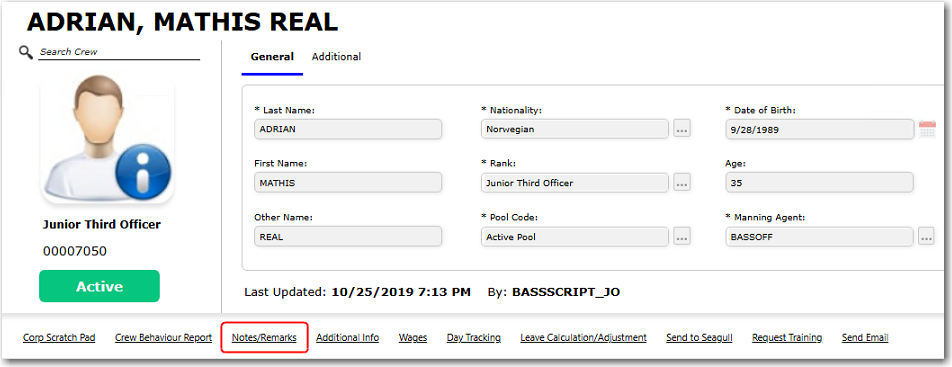
3. On the crew profile, click the Notes/Remarks link.
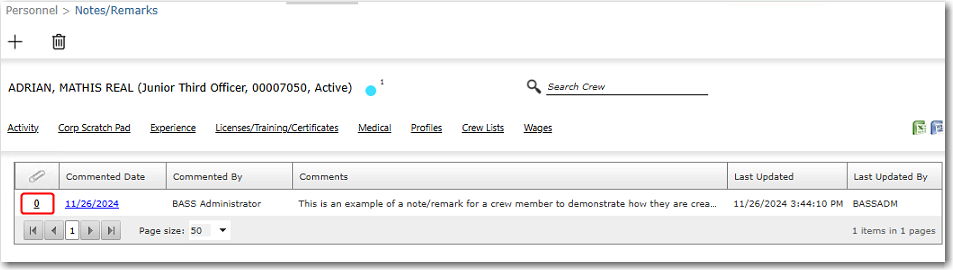
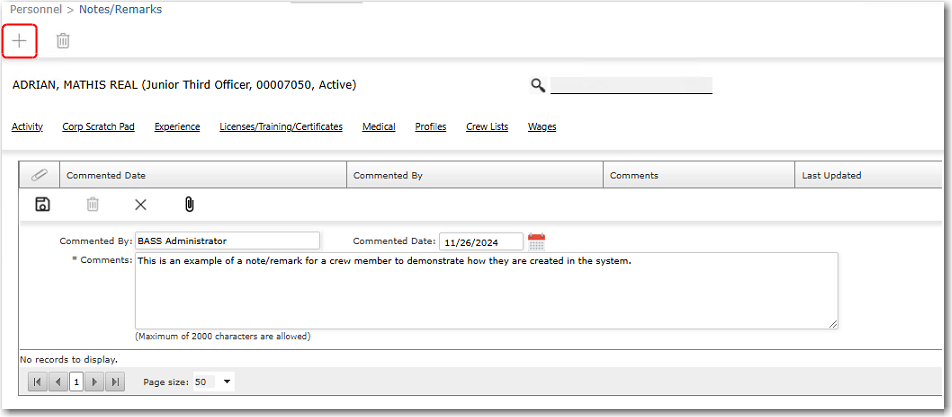
4. On the Notes/Remarks screen, click the '+' icon at the top to add a new note or remark, and then enter the relevant details in the following fields:
|
Field |
Description |
|
Commented By |
This field is auto-populated with the user name of the person logged in. You may change the 'Commented By' name to another user if needed. |
|
Commented Date |
Use the calendar function to select the date the comment is made. This defaults to the current date. |
|
Comments |
The comments entered for the crew member will function as the actual note or remark, so it is a mandatory field and cannot be left blank. |
5. Click the diskette icon to save the note or remark entered. The note or remark you have just created will now be listed in the table on the Notes/Remarks screen.
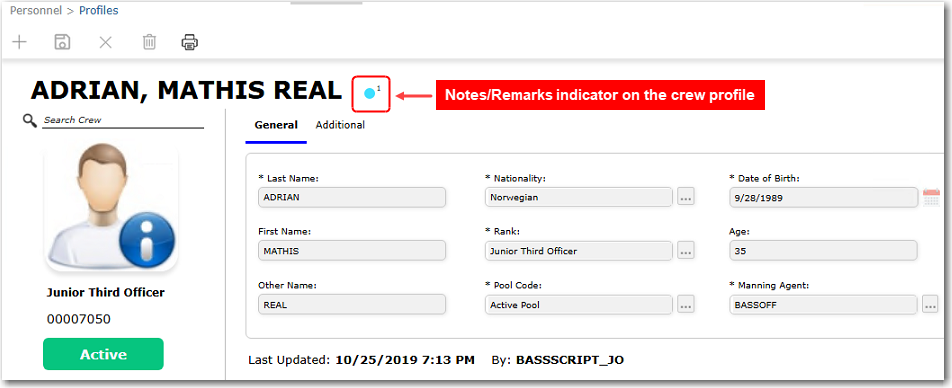
An indicator will also be displayed on the crew member's profile to indicate that a note/remark has been recorded for the crew member. The indicator is displayed as a light blue circle with a number indicating the total number of notes/remarks currently recorded for the crew member. Clicking this indicator will open up the Notes/Remarks screen for the crew member.
6. Optionally, on the Notes/Remarks screen, click the number 0 in the 'Attachment' column to upload any relevant documents for the note or remark.
In the Upload Manager, click the Add Attachment(s) button to browse for and select the file to be uploaded, and then click OK. The attachment will be uploaded and can be accessed from the Upload Manager window. To launch the Upload Manager again, click the number indicated in the 'Attachment' column for the record.